
Explore the network map
The MAP page (/pro/map) shows nodes and their network connections in a running experiment. Wait until the experiment and diagram have loaded before starting capture or using runtime actions.
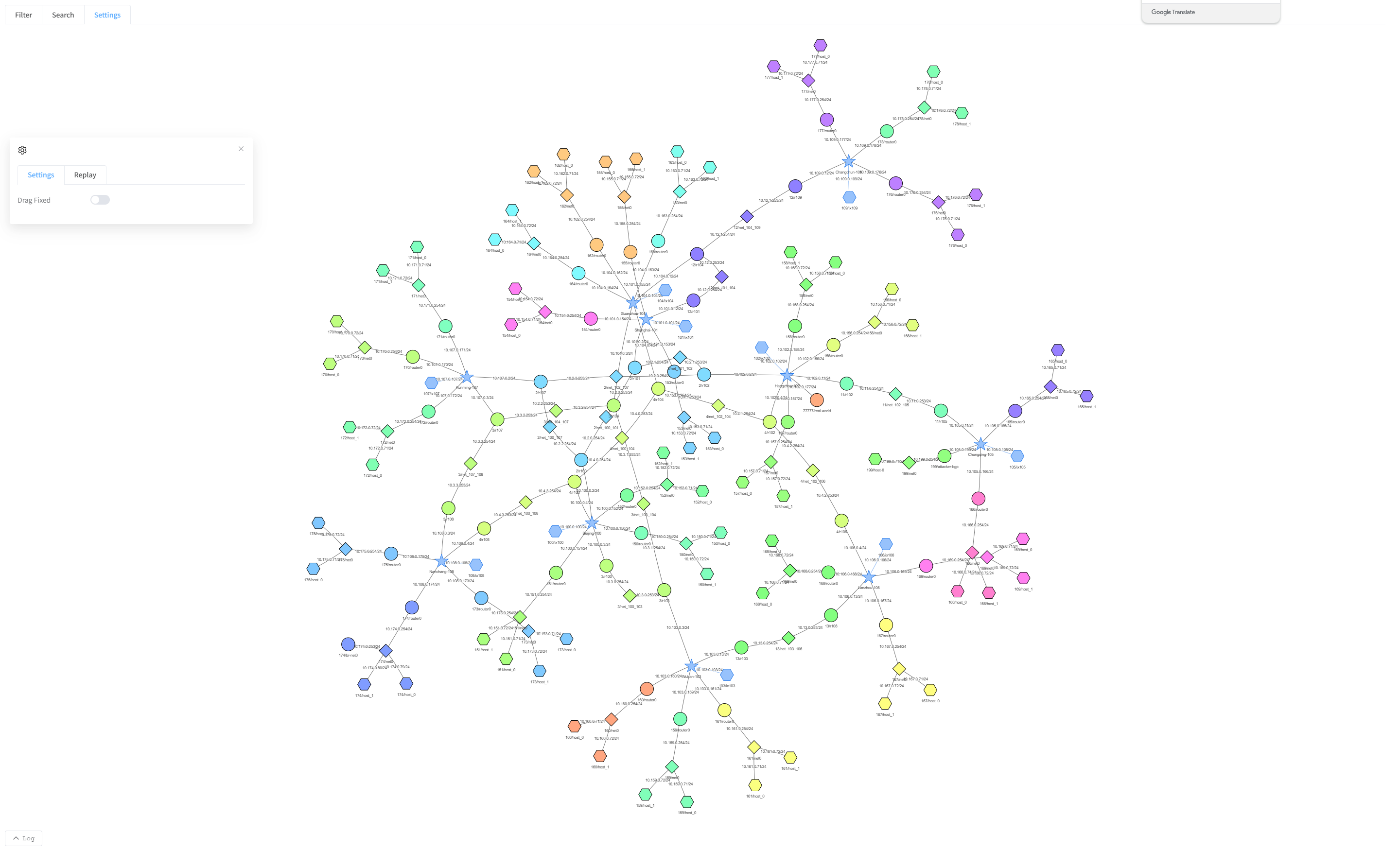
Navigate and inspect
- Open MAP from Home.
- Drag empty space to pan the diagram and use the mouse wheel to zoom.
- Click a node once to open its details. Read its name, AS number, role, and addresses before acting on it.
- Close the details dialog to return to the map.
Lines indicate connections. Packet activity is shown only when matching events are received or replayed. Node colors and labels depend on the experiment; use details to confirm a node’s identity.
Expand or collapse
Double-click a node to collapse or expand its related detail. A collapsed node can show a Double-click to expand hint when you point to it. This changes the diagram, not the running network.
Use collapse to reduce clutter around a region, then expand it when you need its internal nodes. The IX and Transit views offer broader starting points for large experiments.
Arrange the diagram
You can drag nodes to more readable positions. To keep a position after dragging, enable Settings ? Drag Fixed. To let the layout move them again, turn that option off. See Search and display settings.
If the diagram is empty, check that you opened the live page for the intended experiment. Ask the operator whether the experiment has finished starting before retrying.