
Search and display settings
Use search to find a node or network, and Settings to make a crowded diagram easier to read. Search is distinct from packet filtering: it highlights topology objects without starting a capture.
Search by name or address
- Open Search on the map page.
- Enter a node or network name, label, or IP address from your experiment.
- Press Enter or click Submit.
- Inspect the highlighted matches and click one to open its details.
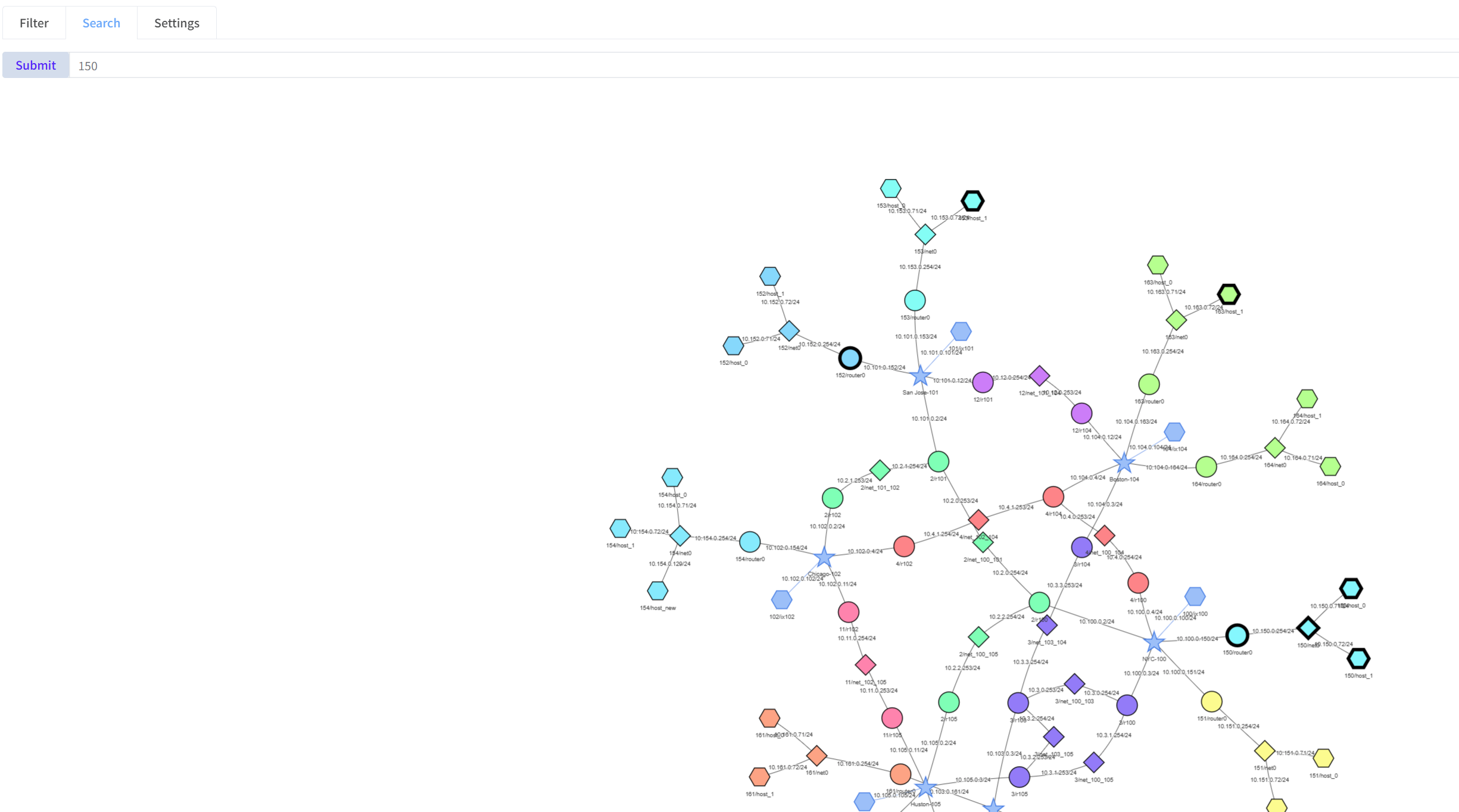
If there are no matches, check the value and the groups currently displayed. On IX or Transit views, a more detailed node may not be visible until expanded; use the full MAP view when necessary.
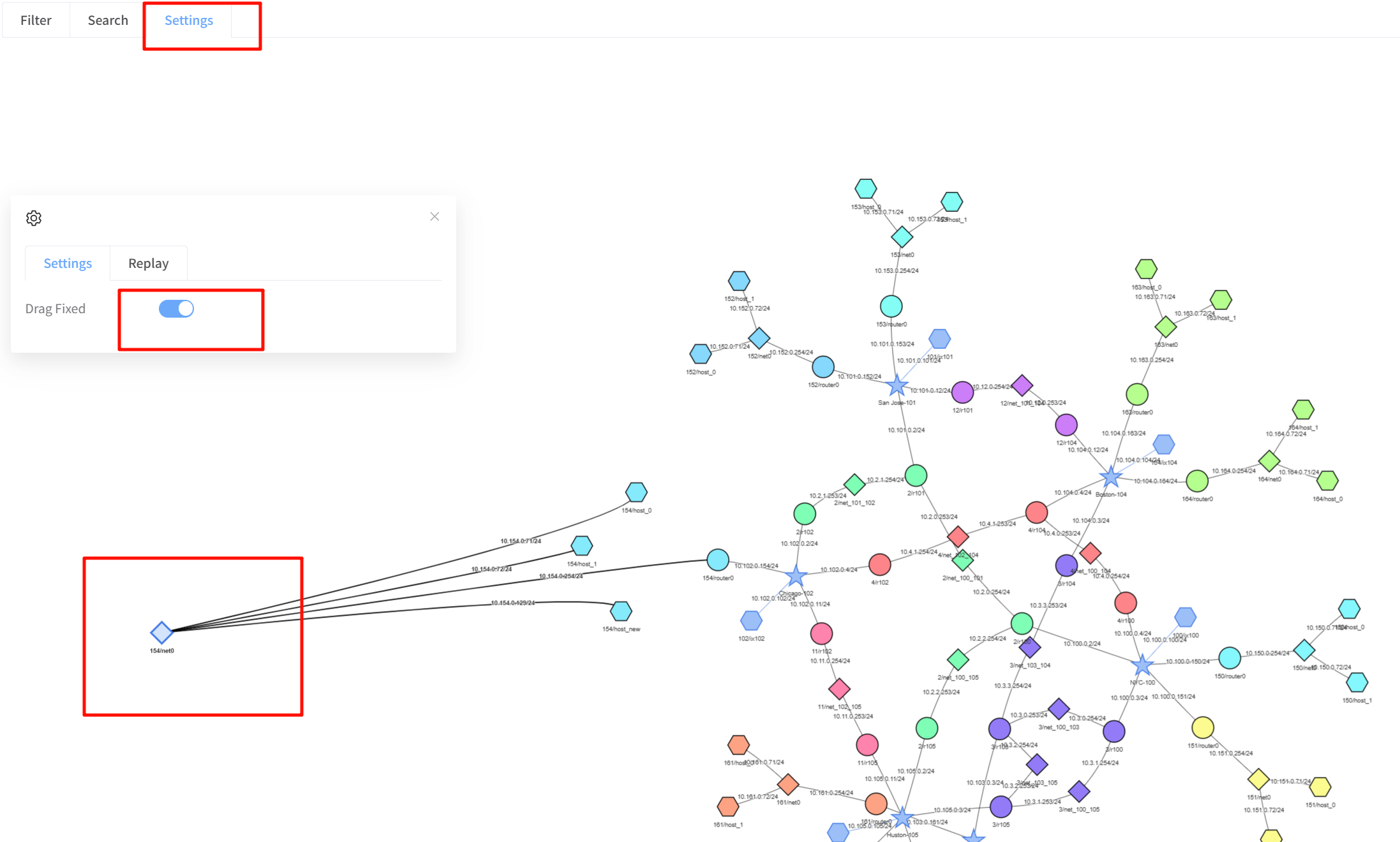
Keep dragged positions
- Open Settings.
- Turn Drag Fixed on.
- Drag a node to the desired position.
- Turn Drag Fixed off when you want the automatic layout to adjust positions again.
Highlight services
If the experiment contains recognized services, a service selector appears in Settings. Select a service such as WebService to highlight the borders of nodes providing it. Clear the selection to restore their normal appearance. The same service uses a consistent color within the displayed view, but the chosen color can vary.
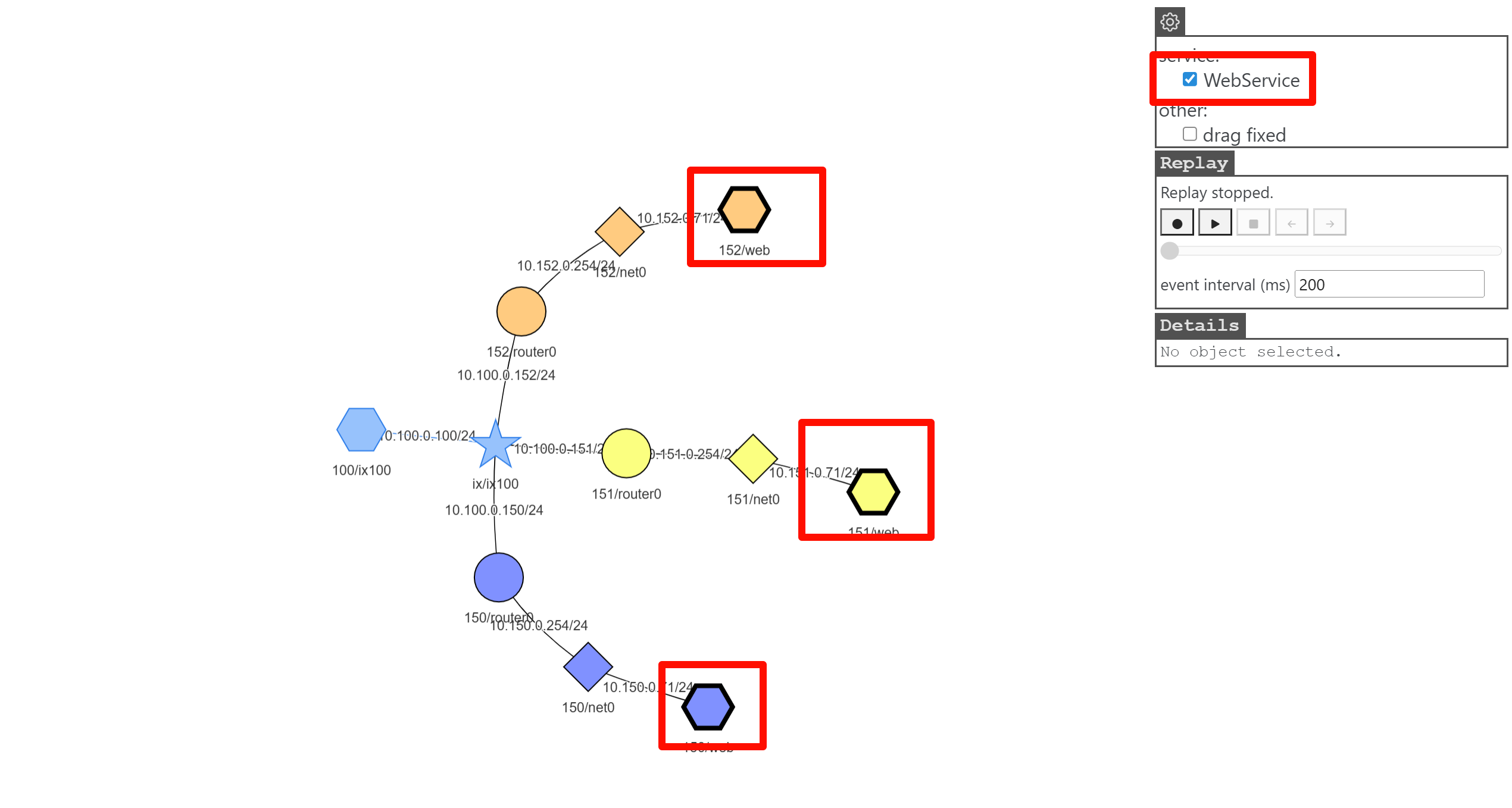
Service highlighting and Drag Fixed affect the display; they do not install services or change the network. For packet activity, use Capture and replay.