
Search and display settings in 3D
Open Settings in the bottom-right panel to locate nodes and adjust the readability of the view. These controls work with live and uploaded topologies.
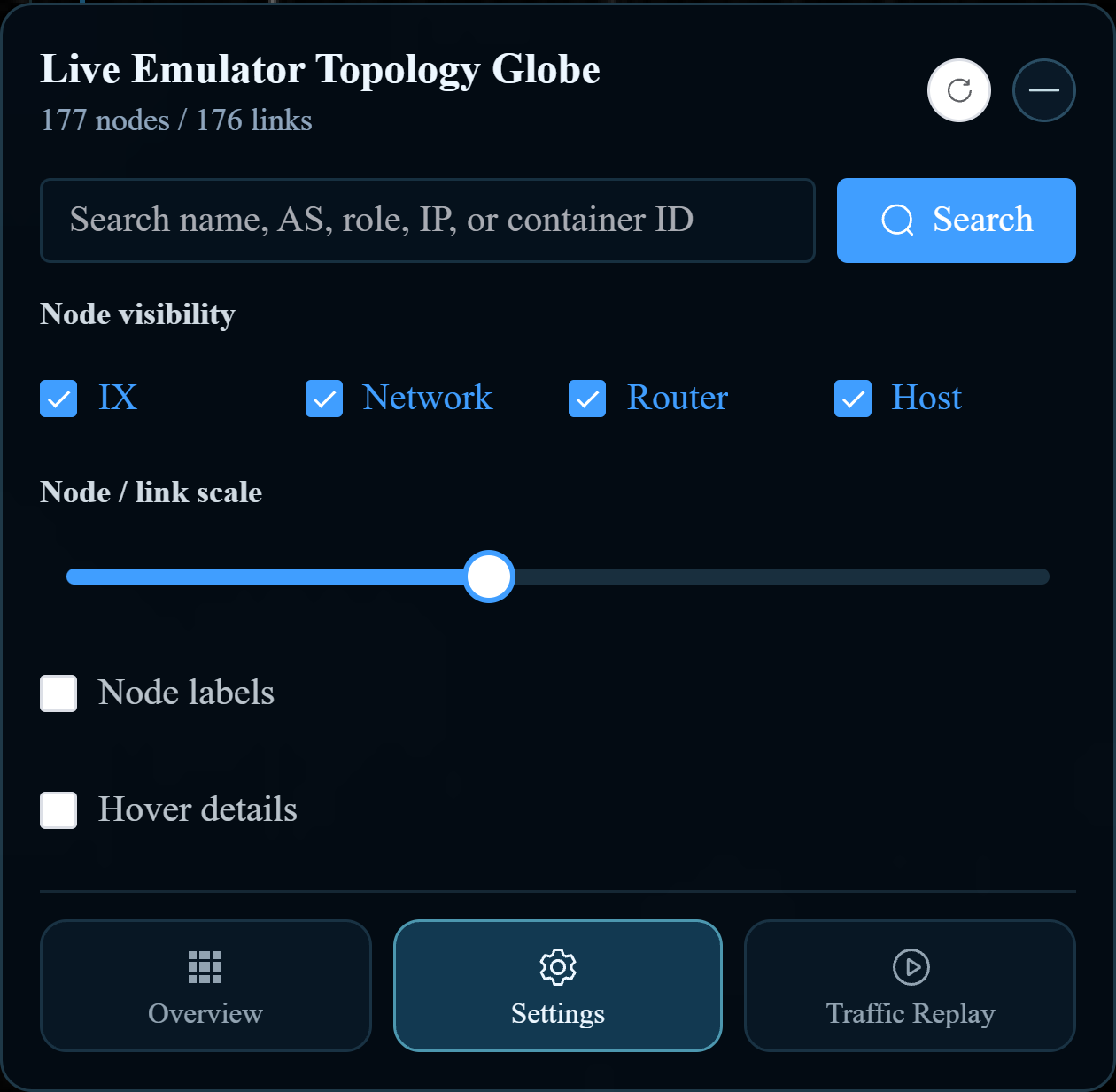
Find a node
- Enter a known node name, IP address, AS number, role, or identifier in the search field.
- Choose a suggestion, press Enter, or click Search.
- Look for highlighted matches. If there is one match, the page tries to move the view to it.
- Enable Hover details and point to the result to inspect its identity and addresses.
Use a value from your own experiment. If you get no visible match, check the spelling, clear topology filters, and enable the relevant node type. Rotate the globe if a result is on its far side.
Make a crowded topology readable
| Control | Effect |
|---|---|
| IX, Network, Router, Host | Show or hide the corresponding node type. |
| Node / link scale | Change marker and connection sizes. |
| Node labels | Show or hide labels without removing the nodes. |
| Hover details | Show a details card when pointing to a node. |
Hiding Router disables the ordinary Network control. Hiding Network also hides topology links. These are display changes, not changes to the experiment.
For a large topology, start by hiding labels and reducing the scale. Then use AS / IX filters to isolate a smaller area. For runtime controls shown in a live node’s details, see Node actions.