
Overview and filters in 3D
Use Overview to understand the visible topology and focus on the groups relevant to your task. These controls are available on both live and uploaded topology pages.
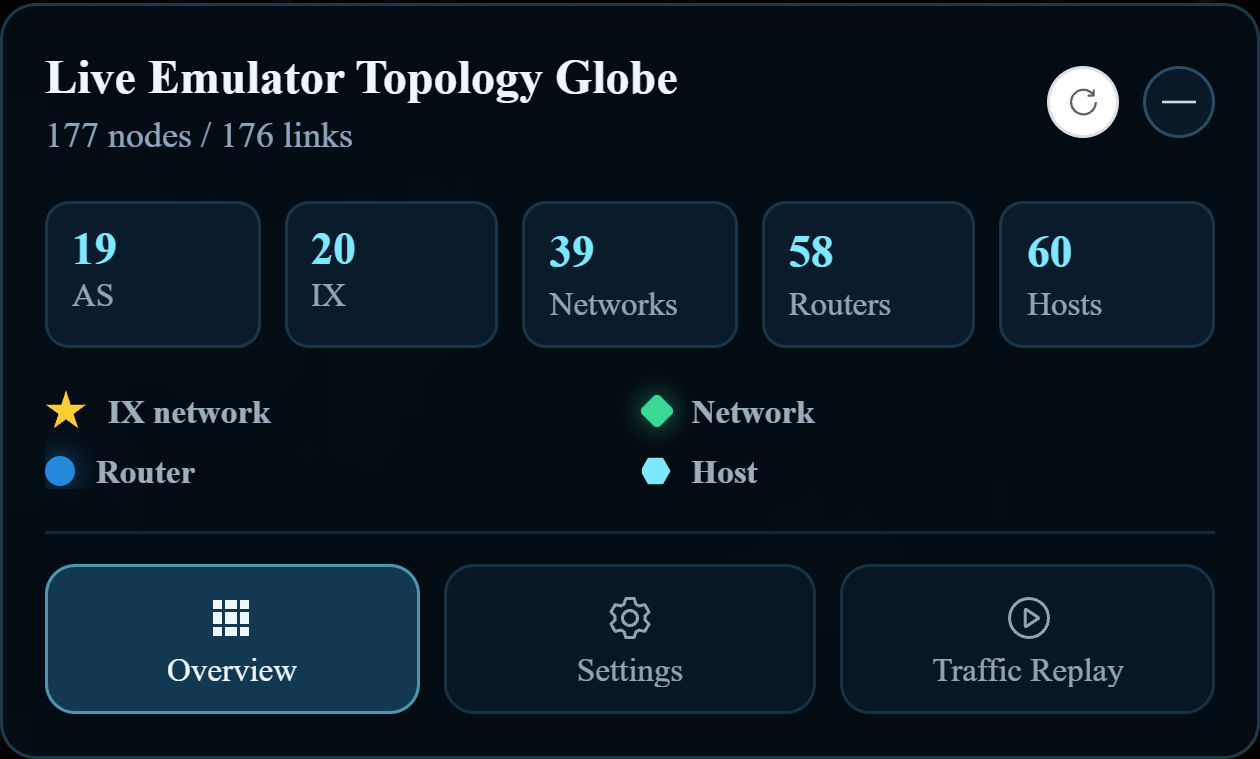
Read the counts
The header reports rendered nodes and links. The cards summarize AS, IX, Networks, Routers, and Hosts. The legend below explains how node types are drawn. Counts depend on the loaded experiment and the applied display filters.
Focus on an autonomous system
- Click Overview, then the AS count card.
- Open Select AS and search for or select one or more AS values.
- If needed, enable the details option to inspect the listed routers.
- Click Apply AS filter.
- Inspect the related nodes and connections in the globe view.
Focus on an exchange
- Click the IX count card.
- Select the exchanges you want to inspect.
- Click Apply IX filter.
- Use Clear topology filters to return to the unfiltered topology.
Selecting an AS or IX changes what the map displays; it does not stop other nodes or change routing. If a node remains hidden after clearing filters, check its visibility in Settings.
Use topology filters to choose which nodes to show. Use a capture filter to choose which packets to observe.